
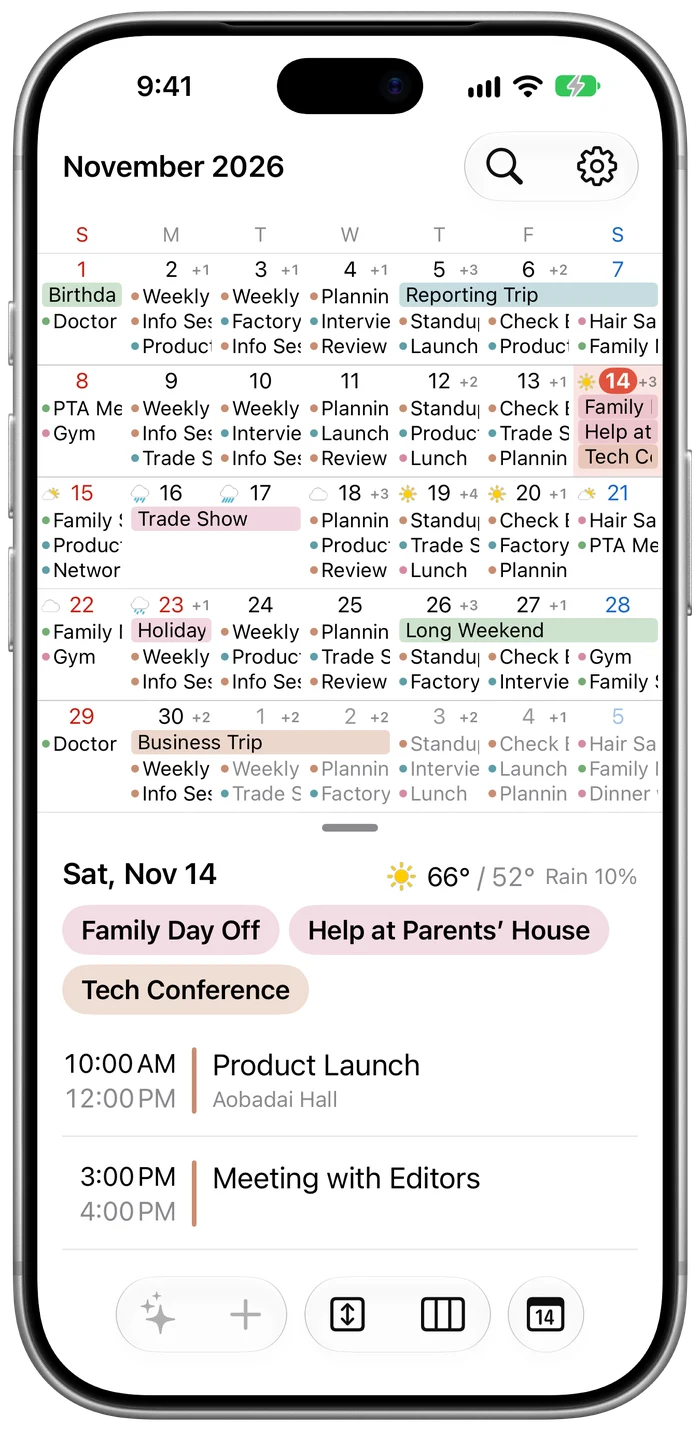
Weeks keep going when the month changes
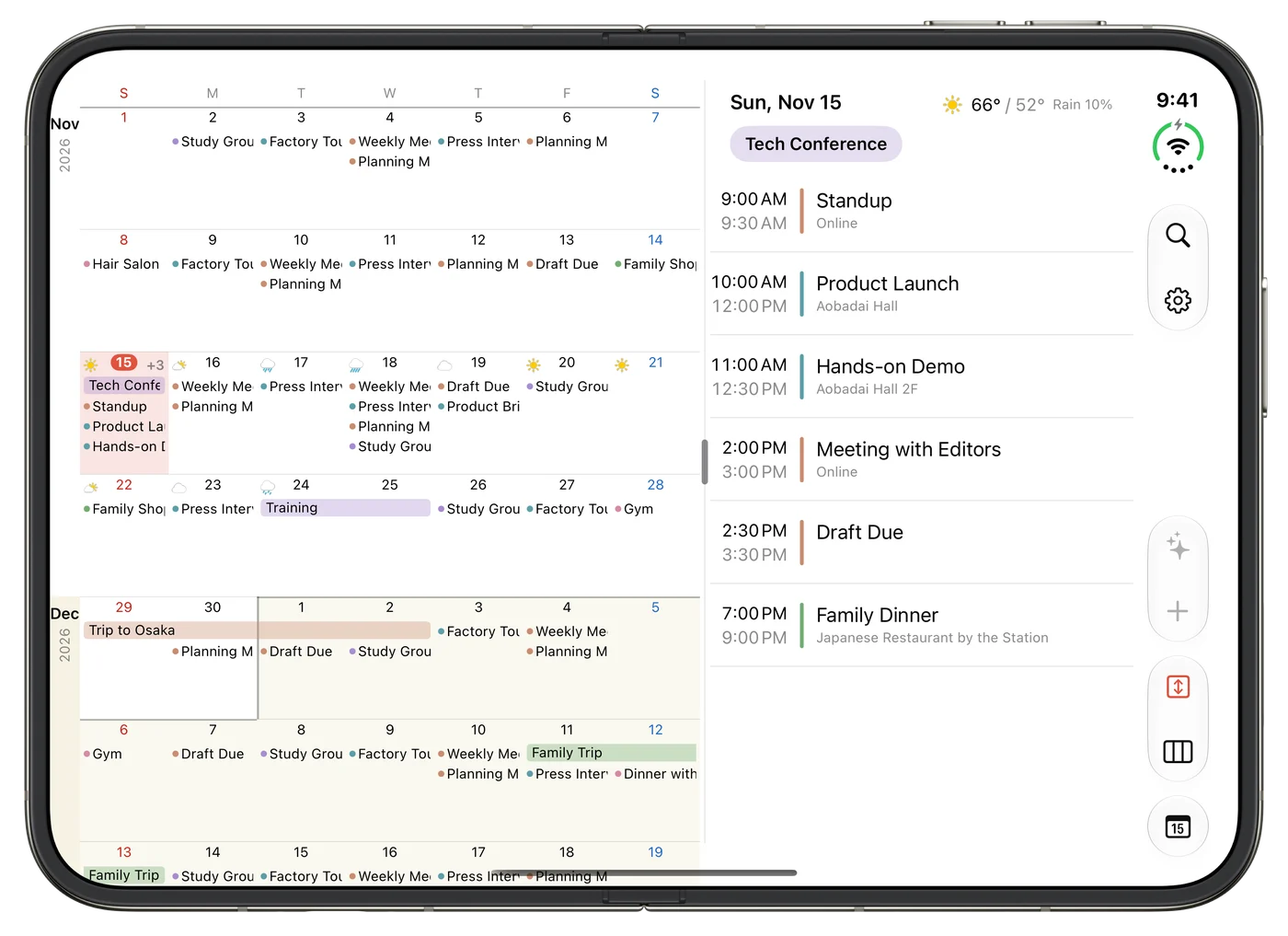
In the Scroll view, weeks follow one another from top to bottom with no break between months. An event that runs from the end of one month into the next stays a single, unbroken bar.
The month you're looking at stays white and the months around it get a faint tint, so you can always see where one month ends. Pinch to change the height of the weeks, and flick to stop at the start of a month.
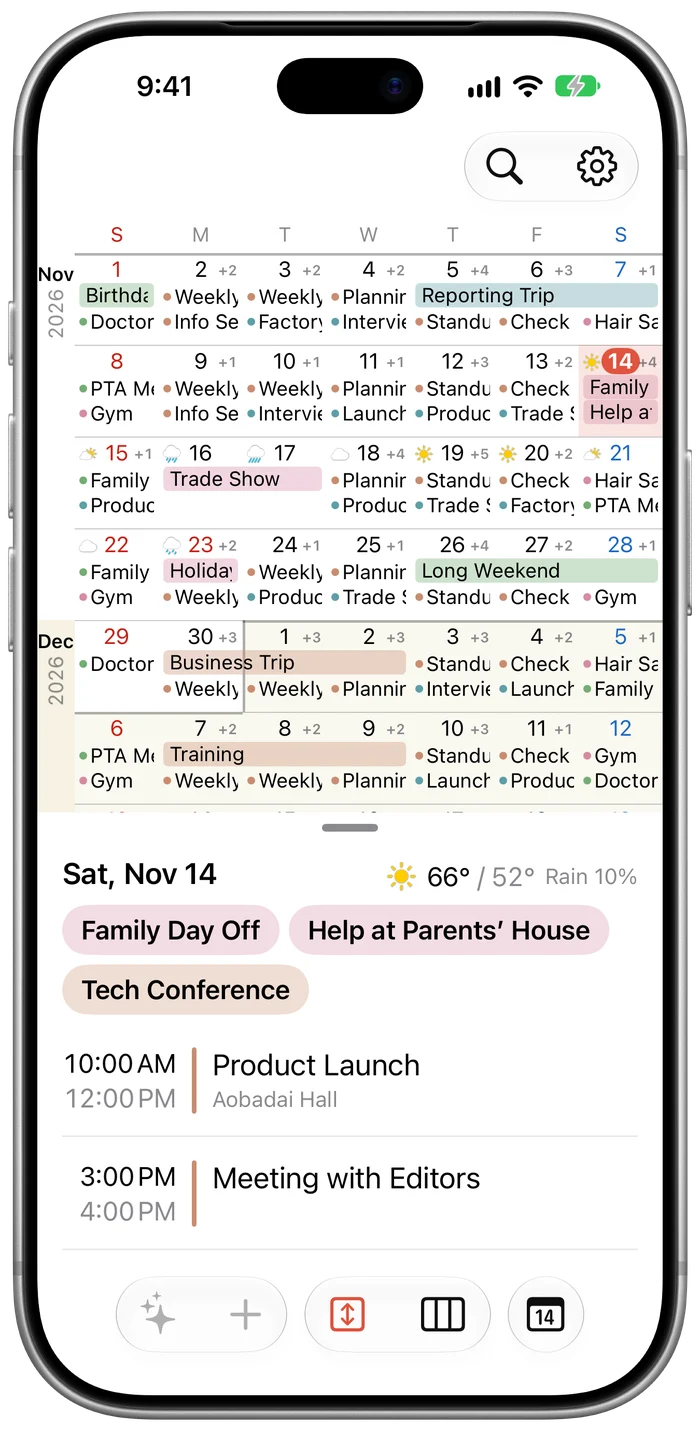
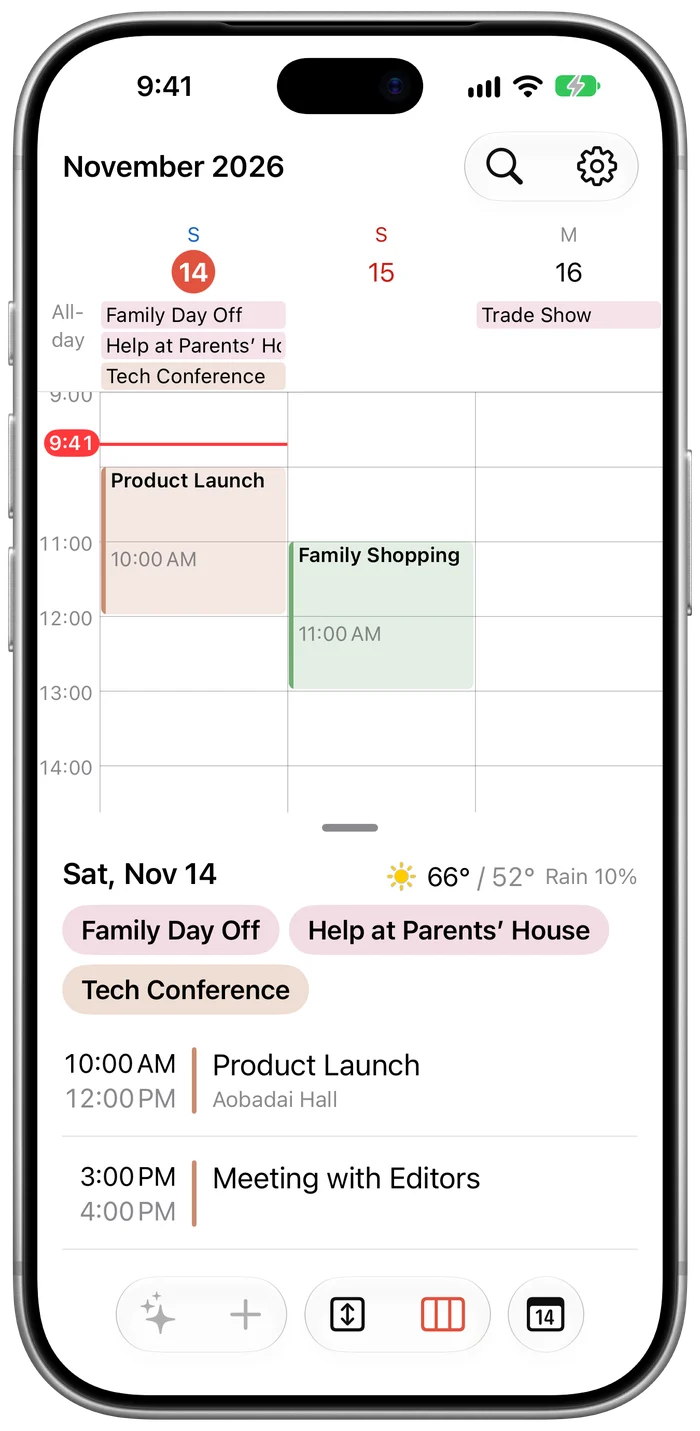
Widen a busy day to read every event
In the Week and 3 Days views, the selected day gets a wider column, and overlapping events sit side by side so their titles stay readable. Spread or pinch two fingers to change the width; pinch all the way to give all seven days the same width again.
Swipe across the timeline to move to the previous or next week, and tap an empty spot to select that day. Tap once and then drag up or down without lifting your finger to zoom with one hand.
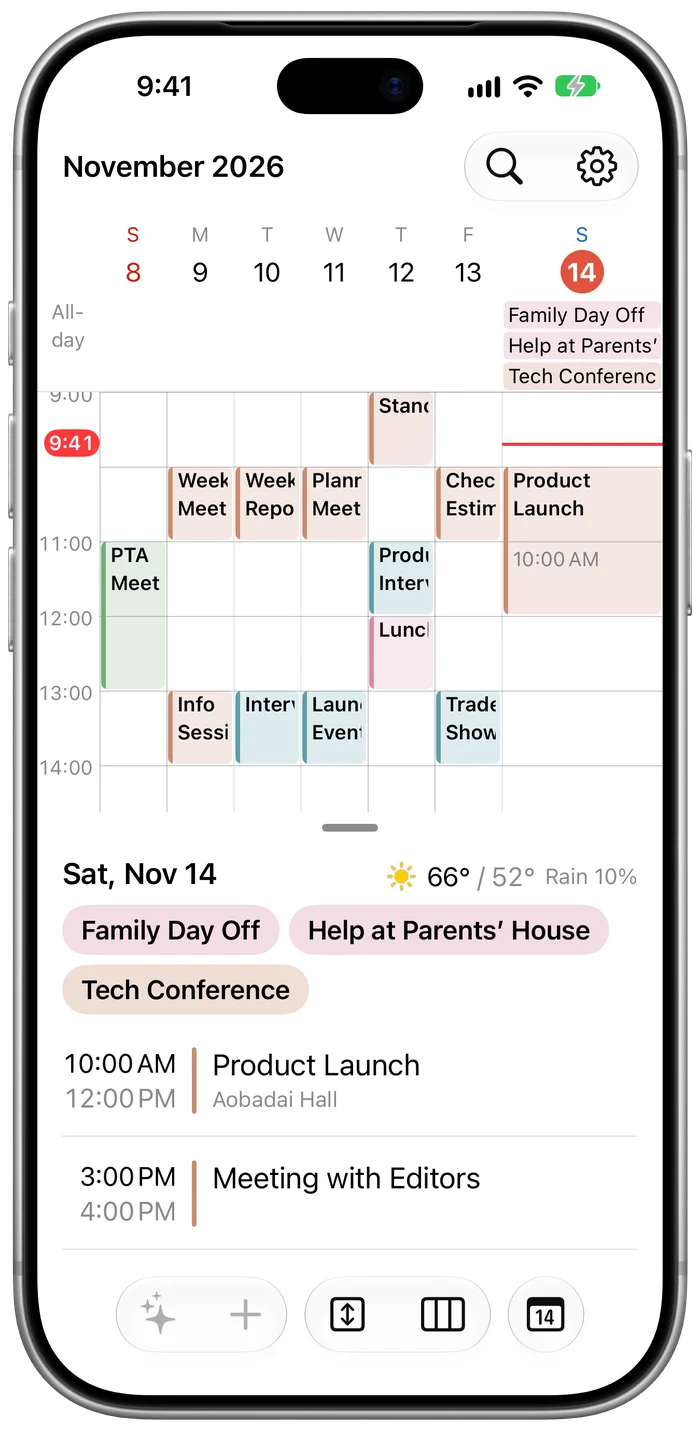
Unfold iPhone Duo to see the calendar and your events side by side
On the outer screen, the calendar sits on top and the day's events below. On the large inner screen they sit side by side, and event details open where the list is, so the calendar is never covered.
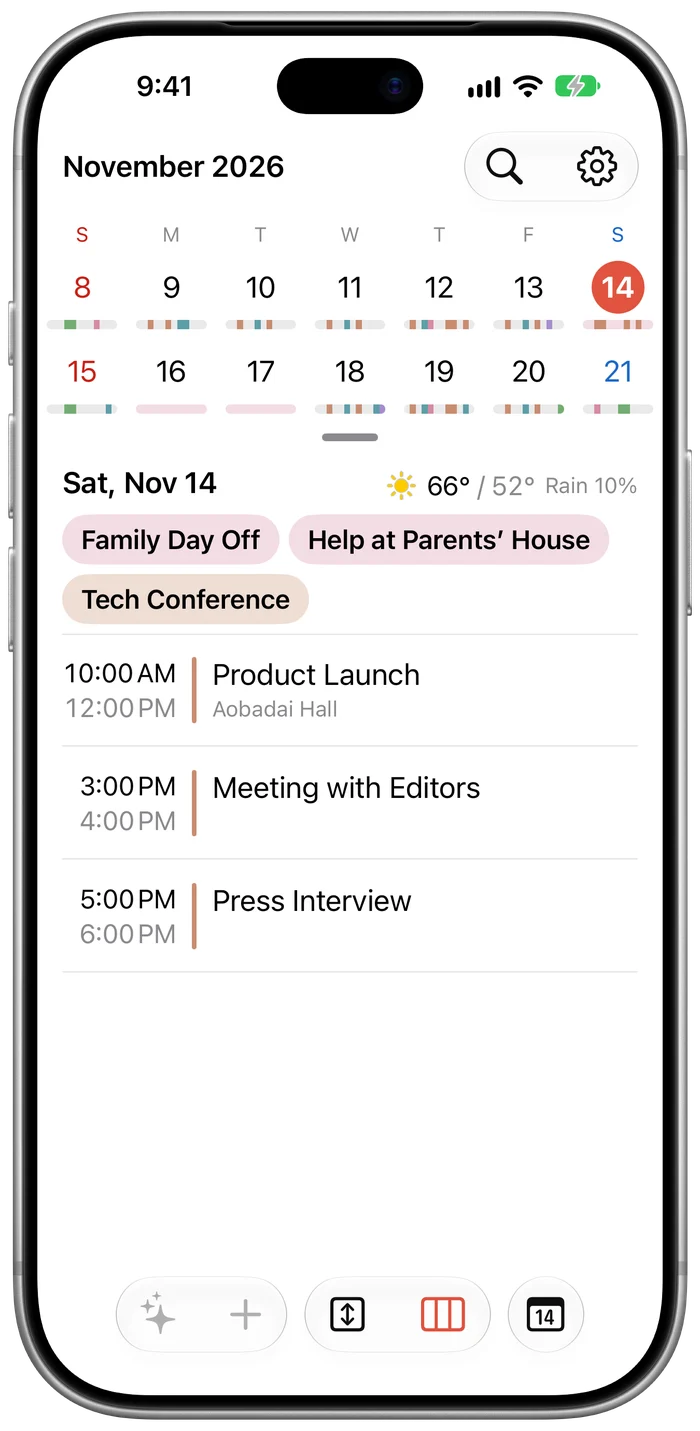
The handle between them stops at three heights. Push it all the way up and the calendar becomes a two-week strip, with thin lines marking the busy hours of each day.
Tsuranari works on regular iPhones too. Turn the phone sideways to place the two side by side.
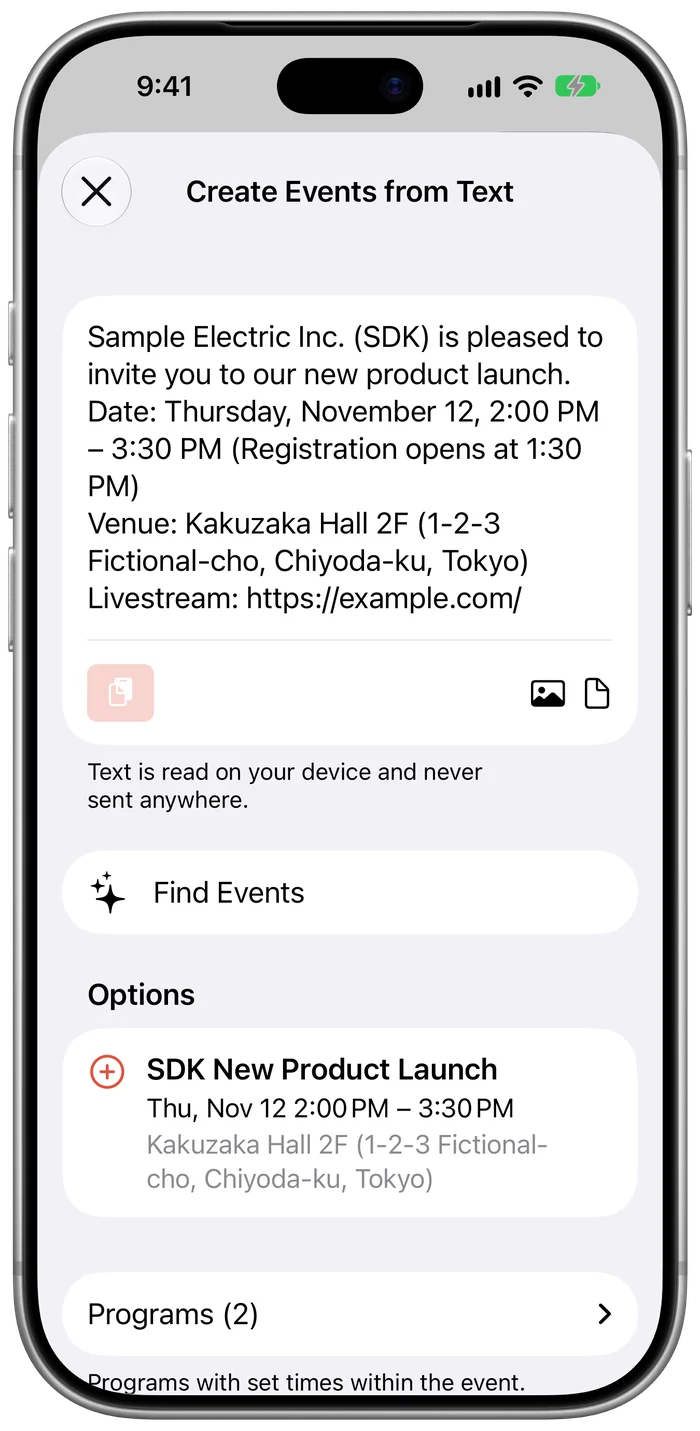
Paste an invitation to get draft events
Paste an invitation to a launch, a meeting, or a get-together, and Tsuranari reads the date, time, place, and URL to draft the events. Anything worth a second look, such as a missing date or a weekday that doesn't match, is marked so you can check before adding.
- Input
- Text, photos (screenshots of invitations), PDFs, and LINE chat history
- Reads
- Date and time, multi-day periods, place, URL for joining, and the organizer's name
- Languages
- Invitations in English and Japanese
- Deadlines
- If a sign-up deadline is found, it can be added to Reminders so you're notified before it
Requires an iPhone that supports Apple Intelligence (iOS 27 or later). Everything is read on your device.
Home Screen widgets, sign-up tracking, and weather
- Widgets
- Today, Next Event, 2 Weeks, 5 Weeks, and Upcoming. You can see continuous weeks right on your Home Screen, and place widgets on the Lock Screen and in StandBy too
- Sign-up status
- Record No Response, Tentative, Signed Up, or Declined on events such as info sessions. A mark appears on the calendar and in the list, so events you haven't answered yet stand out
- Weather
- Choose a location in Settings to show 10 days of weather next to the dates. Off by default
- Start week on
- Any day from Sunday to Saturday. It applies to the Month, Scroll, and Week views and to widgets
