Tsuranari Support
Last updated: November 10, 2026
About Tsuranari
Tsuranari is a calendar app that shows the events in your iPhone calendars in an easy-to-read layout and lets you edit them.
- It uses your iPhone’s calendars as they are (iCloud, Google, and any other accounts you have added to the device). Events are not copied into the app.
- On iPhone Duo, the open inner screen shows the calendar and the day’s list side by side. When the phone is half open, the screen is split at the fold so that no dates fall on the crease.
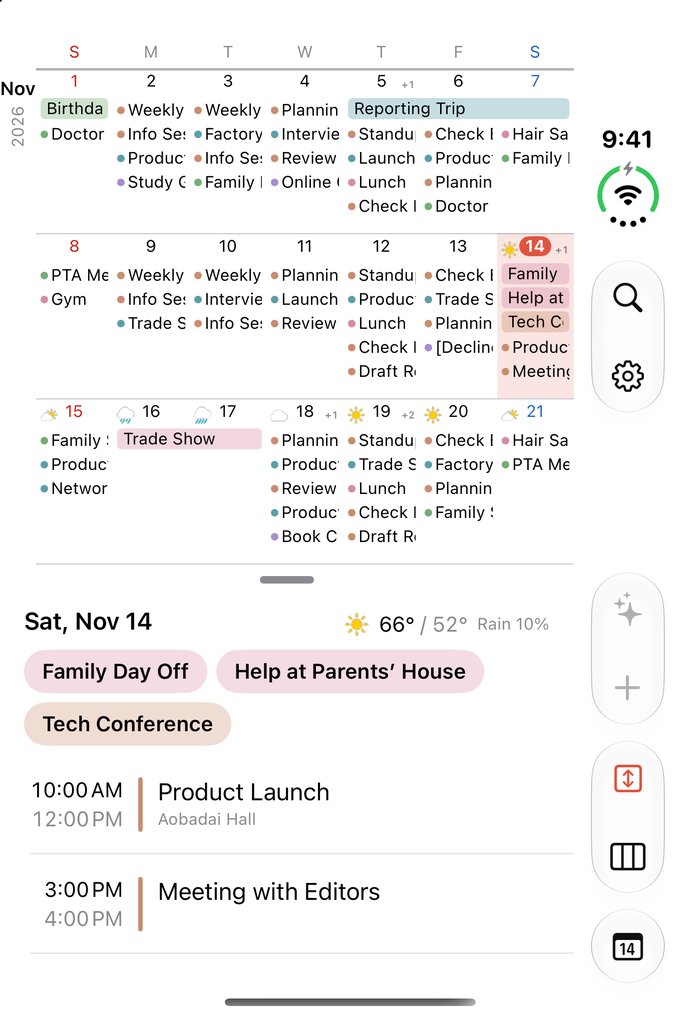
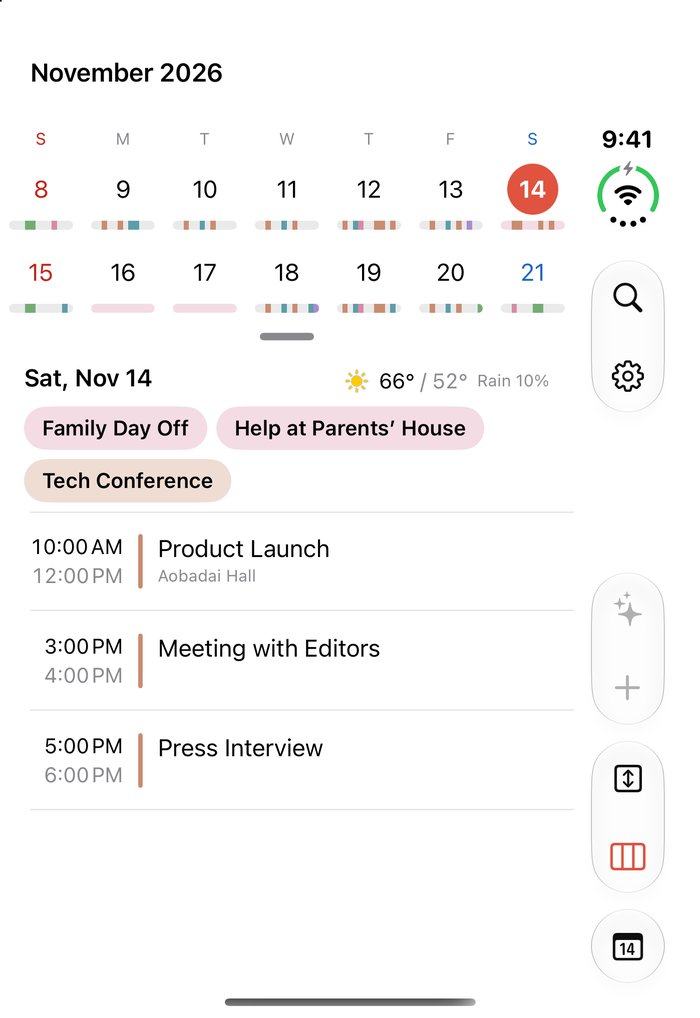
- On the closed outer screen and on regular iPhones, the calendar is at the top and the list for the selected day is below it. Drag the handle between them to change the height of the list.
- In landscape, the calendar and the list are placed side by side.
- Paste the text of an invitation email or message, and the app suggests events from it (on devices that support Apple Intelligence).
- Home Screen and Lock Screen widgets show today’s events or five weeks of events.
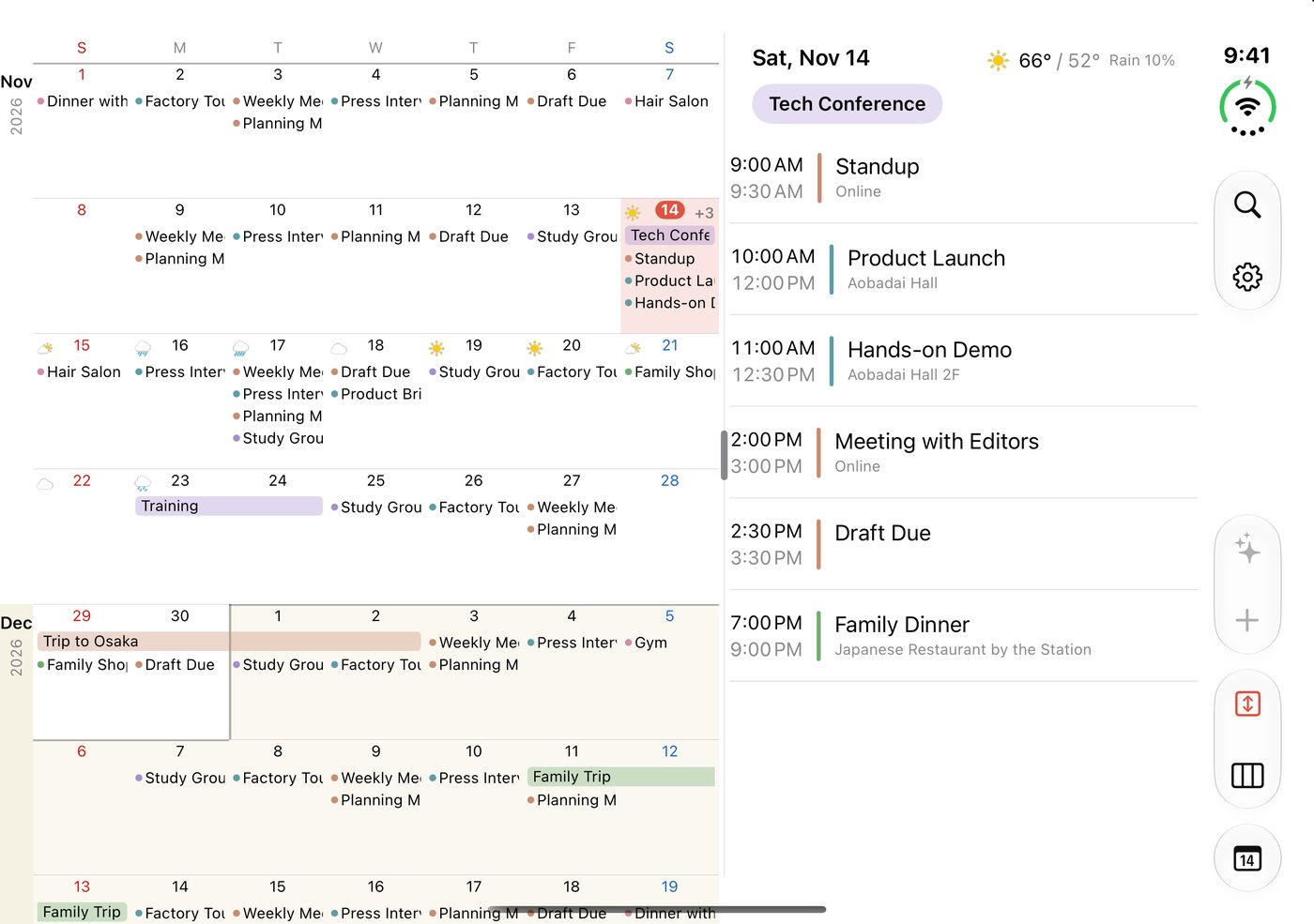
Views
| View | What it shows |
|---|---|
| Month | One month on one screen. All-day events appear as bars, and timed events as “● event name”. When not all events fit, the number of hidden events appears to the right of the date, such as “+2” |
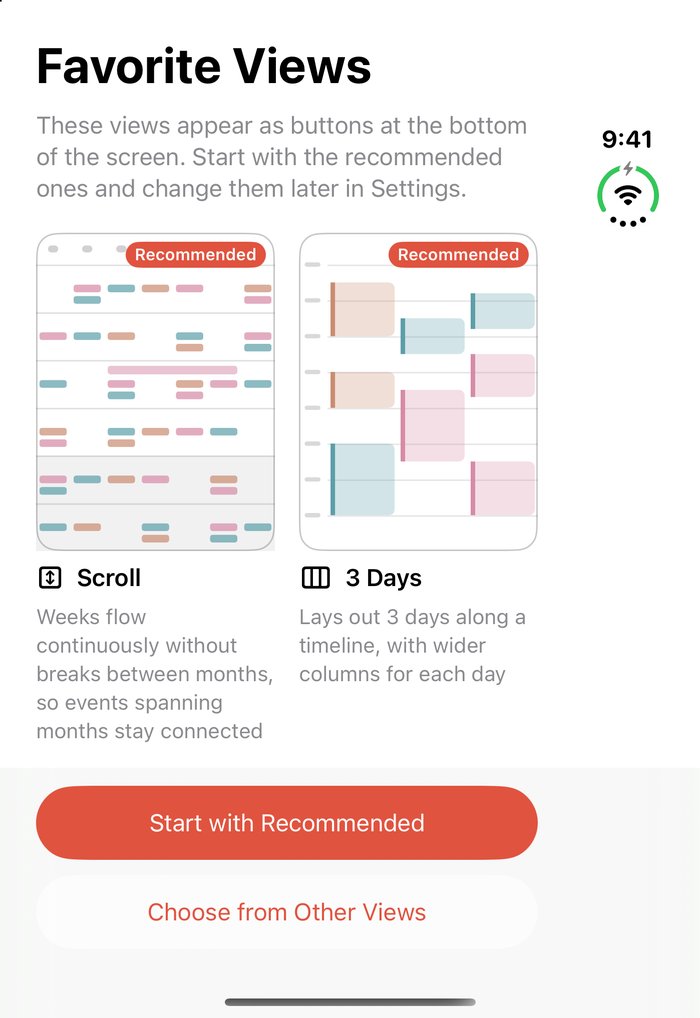
| Scroll | Weeks are stacked vertically without breaks between months, so you can scroll continuously. A vertical bar on the left edge shows the year and month |
| Week | Seven days on a timeline |
| 3 Days | Three days on a timeline |
| Day | One day on a timeline. Useful on days with overlapping events |
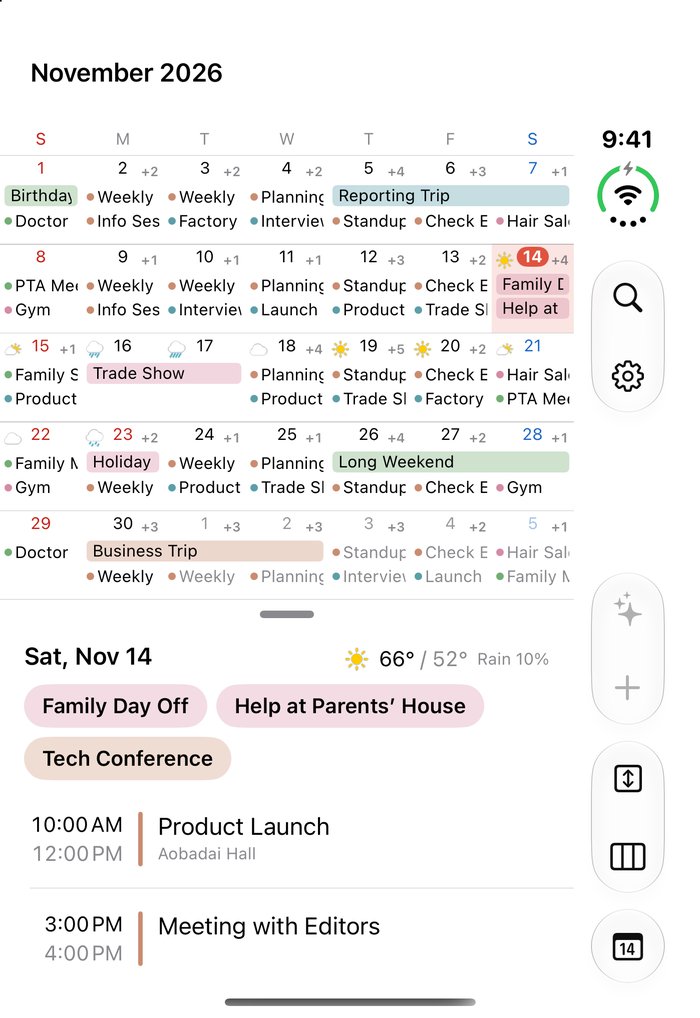
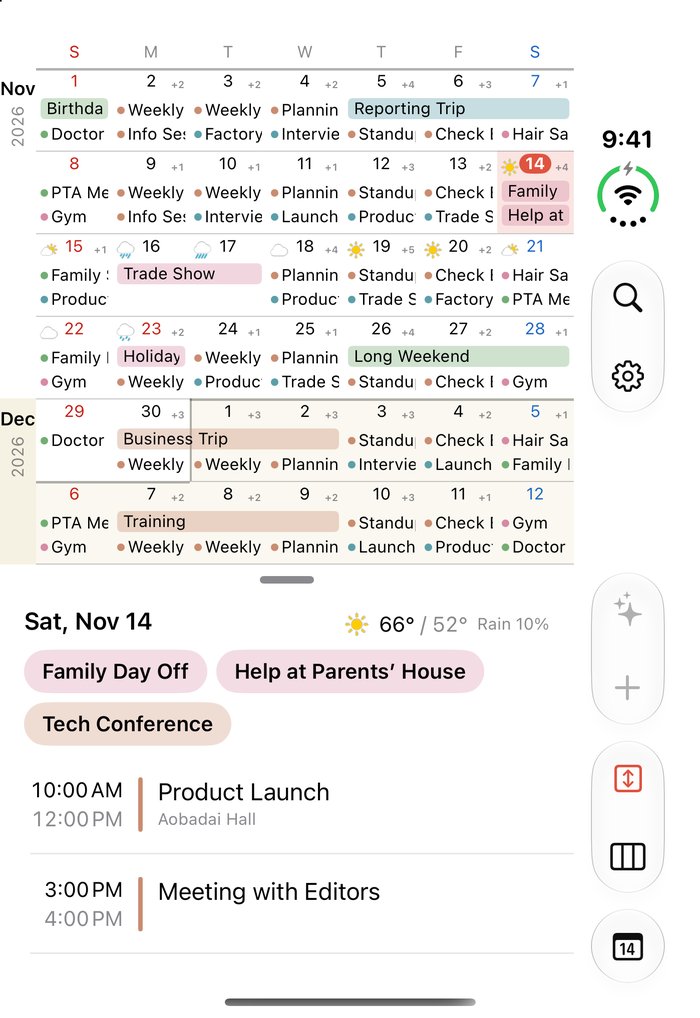
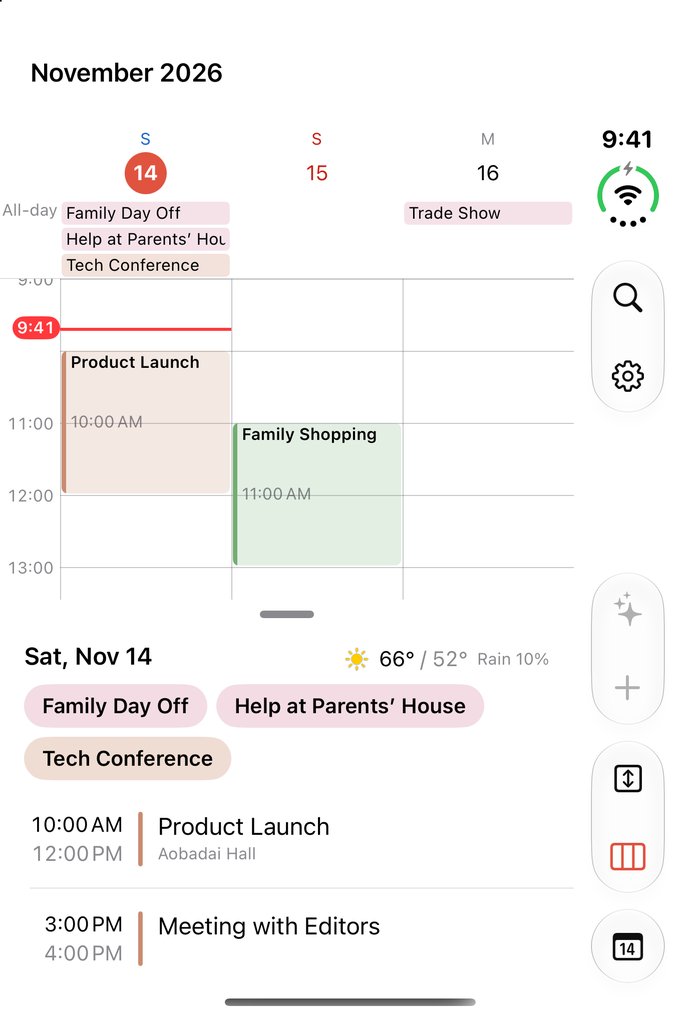
- Sundays and holidays are shown in red, and Saturdays in blue.
- You can choose which day the week starts on with “Start Week On” in Settings.
- You can pinch to zoom in and out in the timeline views and the Scroll view. The size is kept for the next time you open the app.
- In the Week view, the column for the selected day (today at first) is wider. Spread or pinch two fingers horizontally on the timeline to change its width; pinch all the way in and all seven days have the same width. Tap an empty spot on the timeline to select that day, and swipe sideways to move to the previous or next week. Swipe the header left or right to move the wide column to the neighboring day, and swipe it up or down to turn the wider column on or off. You can also turn this off in the “Week and 3-Day Views” section of Settings. In the 3 Days view, too, you can widen the selected day’s column by spreading two fingers horizontally (at first, all three days have the same width). If you turn off “Widen the Selected Day” in Settings, columns are not widened in either view.
- When the calendar and the list are stacked vertically, tap the selected day again to expand the list.
- When they are stacked vertically, the handle between them stops at three positions. Drag it all the way up and the calendar becomes a two-week strip, where a thin bar under each day shows when between 8 AM and 8 PM you have events.
- When the inner screen of iPhone Duo is fully open, and when an iPhone is in landscape, the handle lets you choose a split of 5:5, 6:4, 7:3, or 8:2. At 5:5, the divider lines up with the fold.
- On the inner screen and in landscape, tapping an event shows its details in place of the list, without covering the calendar. Tap “List” to go back.
Buttons in the Bottom Bar
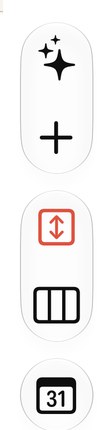
The buttons in the bottom bar are in three groups.
- ✨ and +: ✨ creates events from text, and + creates a new event.
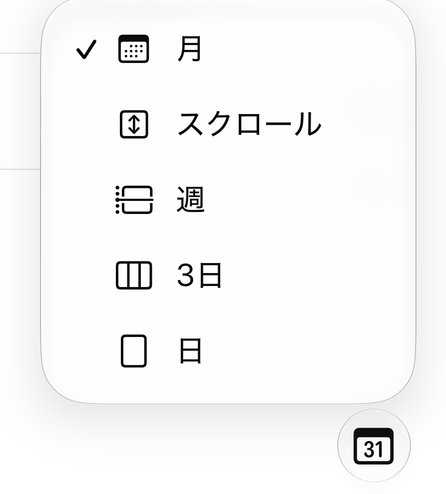
- Favorite Views: one to three views that you chose when you first opened the app or in Settings. Tap one to switch to that view; the current view is highlighted. Touch and hold to choose from all views. When you have three, the ✨ button moves up to the top bar next to Search and Settings.
- Today: goes back to today’s date.
The Search and Settings buttons are in the top bar.
Settings
Open Settings with the gear button at the top right.
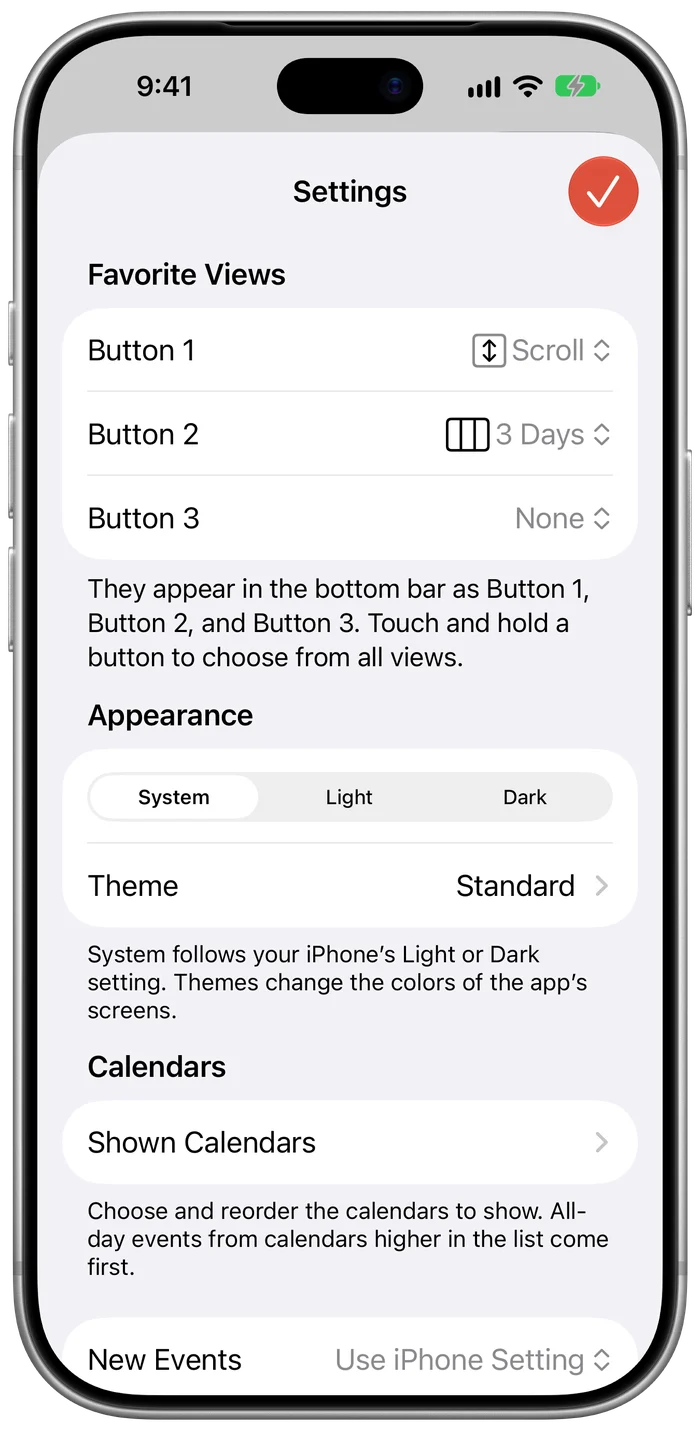
- Favorite Views: choose the views for the bottom bar with “Button 1” to “Button 3”. The buttons appear in this order. Button 2 and Button 3 can also be set to “None”. Button 3 appears once Button 2 is set. If you choose a view that is already on another button, the two are swapped.
- Appearance: choose “System”, “Light”, or “Dark”. “System” follows the Light or Dark setting of your iPhone.
- Theme: choose the colors of the app and its widgets. “Standard” is free. The five “Japanese Colors” themes (Ai Indigo, Moegi Green, Fuji Wisteria, Kinari Cream, and Ginnezu Silver) are unlocked together with a one-time in-app purchase (prices vary by region). Before you buy, you can check the colors in the preview at the top. While “Increase Contrast” is on in your iPhone settings, the app uses the standard colors.
- New Events: the calendar selected first when you create an event with “+”. You can also choose “Use iPhone Setting”.
- Map App for Locations: choose the map that opens when you tap an event’s location: “Ask Every Time”, “Maps” (Apple Maps), or “Google Maps”.
- Week and 3-Day Views: turn “Widen the Selected Day” on or off.
- Sign-up Status: choose where the sign-up status and options are written: “Start of Title”, “Start of Notes”, or “End of Notes”. Records written in any of these places are read, so if you change this later, earlier records still appear as before.
- Start Week On: choose which day the week starts on in the Month, Scroll, and Week views and in widgets. “iPhone Setting” follows the “Language & Region” settings of your iPhone. Any day from Sunday to Saturday can be chosen.
- Holidays: choose the calendar whose dates are shown in red as holidays. “Automatic” uses a calendar whose name contains “祝日” or “holiday”. You can also choose “Off”.
- Shown Calendars: choose which calendars to show and reorder them. All-day events from calendars higher in the list come first. In month cells, events that span several days are placed above single-day events.
- Apple Intelligence: turn off “Create Events from Text” to hide the ✨ button to the left of “+”. This item does not appear on devices that do not support Apple Intelligence.
- About: open the privacy policy and this page, and check the app version.
Working with Events
- Create: tap “+” at the bottom. You can enter a title, location, all-day, date and time, repeat, calendar, alerts, URL, and notes.
- Location: as you type in the location field, places and addresses from Apple Maps are suggested. Choose a suggestion to also save the exact map location with the event.
- Repeat: choose Every Day, Every Week, Every Month, or Every Year, then set the interval (such as “every 2 weeks”) and the end date. Events with more detailed rules, such as “the 2nd Tuesday”, are shown as “Custom”, and their rules are kept unchanged.
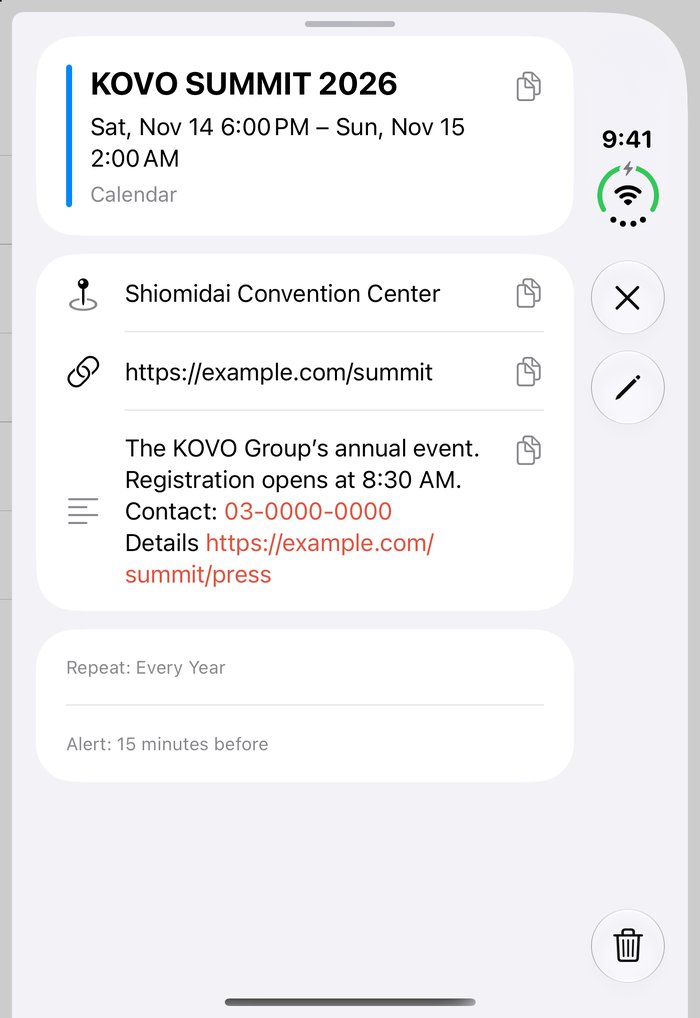
- Details: tap an event to see its title, date and time, location, URL, and notes. URLs and phone numbers in the notes can be tapped.
- Maps: tap the location to open it in Apple Maps or Google Maps. The first time you tap, you choose which one to use. You can change this with “Map App for Locations” in Settings, and you can also set it to “Ask Every Time”. Touch and hold the location to open it in the other map app.
- Sign-up Status: in an event’s details, use “Track Sign-up Status” to record No Response, Tentative, Signed Up, or Declined. Events with a recorded status get a mark in the calendar and the list: an open circle for No Response, a half-filled circle for Tentative, and a circle with a check mark for Signed Up. Declined events get no mark and are shown dimmed. Events whose notes contain a line such as “Option: Seminar 1/3” are listed together as options of the same group in the details and the list, and from the event you mark as Signed Up you can decline all the other options at once. The app writes these markers in English (such as “Sign-up: Done” in the notes, or “[Done] Seminar [Option 2/3]” in the title), and also recognizes the Japanese forms (such as “申込:済み”, “候補:説明会 1/3”, and “【済】”).
- Pinch in the list: spread two fingers over an event in the day’s list to open its details.
- Edit and delete: do this from the details screen. For repeating events, choose “This Event Only” or “All Future Events” when saving or deleting. An occurrence whose time was changed just once opens with that occurrence’s date and time.
- Search: use the magnifying glass button in the top bar to search titles, locations, and notes. Events within one year before and after today are searched. Searches ignore the differences between uppercase and lowercase, full-width and half-width characters, and hiragana and katakana. Separate words with spaces to find events that contain all of them. For events found by their notes, the sentence containing the match is shown with the matching words in bold. For events not in the current year, the year is shown above the date.
Create Events from Text
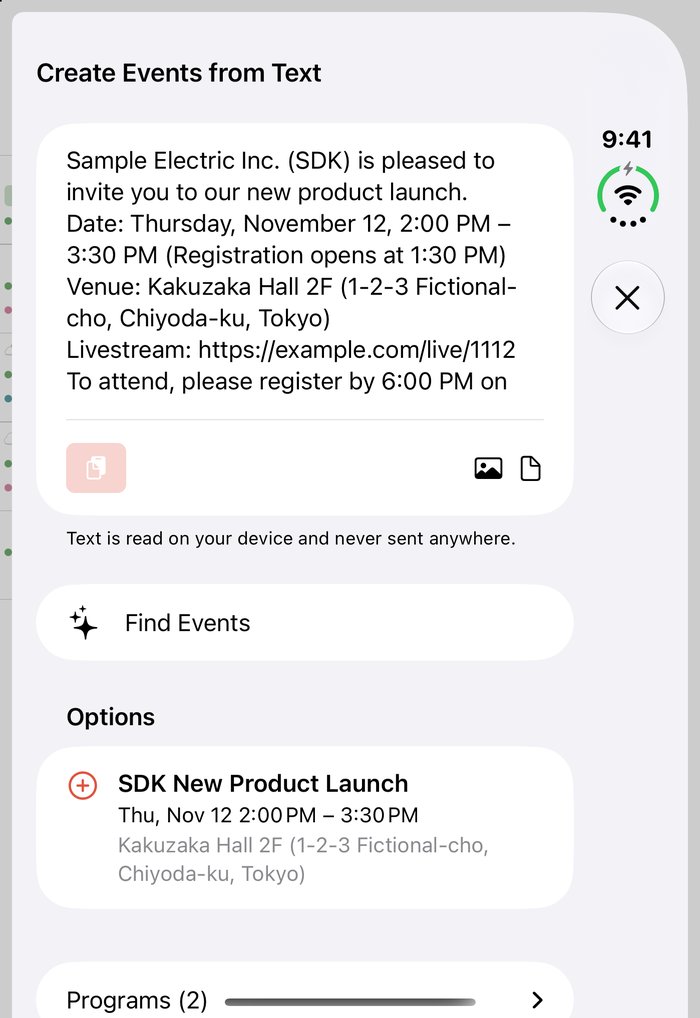
Tsuranari suggests events from the text of invitation emails, messages, and web pages, in Japanese or English. This works on iPhones that support Apple Intelligence, running iOS 27 or later.
- Tap the ✨ button to the left of “+”.
- Paste the text, or choose a photo (such as a screenshot of an invitation) or a PDF. For photos and PDFs, the text is recognized and placed in the field. You can correct any misread characters in the field.
- Tap “Find Events” to see suggestions. Tap a suggestion to open the edit screen, check it, and then tap “Add”. Nothing is added automatically.
- The text you provide is read on your device. It is never sent off the device.
- If an orange warning appears below a suggestion, check the date and time. It appears when, for example, no year or time is given, the day of the week does not match the date, or no date is given and the same day as another event was used.
- The pasted text is placed in the notes of the event you add. When adding to a shared calendar, edit the notes on the edit screen if needed.
- If the text mentions a deadline for signing up or replying, “Sign-up Deadline” appears below the suggestion. Tap “Add to Reminders” to add the deadline to the iPhone Reminders app; you will be notified on the morning of the deadline (or the evening before, if the deadline is before noon).
- If you paste a LINE chat history (exported from the chat settings with “Export chat history”), words such as “tomorrow” or “next Saturday” are counted from the day each message was sent. (LINE is a messaging app widely used in Japan.)
- Times changed partway through a conversation (such as “actually, let’s make it 11”) and the original date and time in a rescheduling notice may not be read correctly. Correct them on the edit screen.
- If you did not allow access to Reminders, you can change this in the Settings app with “Open Settings” shown in the deadline field.
Widgets
Touch and hold the Home Screen or Lock Screen, tap “+” (or “Customize” on the Lock Screen), and choose “Tsuranari Cal” to add a widget. Tap a widget to open that day in the app.
| Widget | Sizes | What it shows |
|---|---|---|
| Today | Small, Medium, Lock Screen (circular) | Today’s date, events, and free time. The Medium size has ✨ and + buttons that open the Create Events from Text screen and the new event screen |
| Next Event | Small, Lock Screen (inline, circular, rectangular) | Your next event and the time until it starts |
| 2 Weeks | Small, Medium, Lock Screen (rectangular) | How busy this week and next week are. The Medium size lists up to three event names for each day |
| 5 Weeks | Large | Five weeks of events starting this week, across months. Switch to “Next 5 Weeks” at the top right |
| Upcoming | Large | Your events for three days starting today |
- In the 2 Weeks and 5 Weeks widgets, days with more events than fit show “+” to the right of the date. Tap it to see all of that day’s events in the app.
- The Shown Calendars, Holidays, and Start Week On settings also apply to widgets. After you change a setting, the widgets update when you close the app.
Frequently Asked Questions
I see “Can’t Read Calendars”
The app needs “Full Access” to your calendars. When you first open the app and tap “Continue”, your iPhone asks for access to your calendars. If you did not allow it then, tap “Open Settings” on the screen to open the Settings app, and set the app’s Calendars access to “Full Access”. Because access is used both to show and to edit events, the app does not work with “Add Events Only”.
Events don’t appear in widgets
Widgets use the same calendar access as the app. If a widget says “Open the app and allow access to your calendars”, open the app and allow access.
Events don’t appear
Please check the following.
- Is the calendar hidden in Shown Calendars? In Settings → “Shown Calendars”, make sure the calendar is checked. Events in hidden calendars do not appear in any view or in search results.
- Do they appear in the iPhone Calendar app? If they are not in the iPhone “Calendar” app either, check your account’s sync settings. The app shows the calendars on your device as they are.
An event I created doesn’t appear
Events saved to a hidden calendar do not appear in the app. When you save, a message tells you that the calendar is hidden; choose “Show” to show that calendar again. To show it later, check it in Settings → “Shown Calendars”.
I can’t hide the “Default” calendar
The calendar labeled “Default” is the one that receives events you create with “+”. If it were hidden, the events you create would not appear anywhere in the app, so it cannot be hidden. If you want to hide it, first choose a different calendar in “New Events” in Settings.
Holidays aren’t shown in red
The app has no holiday data of its own; it uses a holiday calendar on your device.
- Add a holiday calendar (such as “Japanese Holidays”) in the iPhone “Calendar” app.
- Choose that calendar in “Holidays” in Settings. Calendars whose names are not found by “Automatic” can also be chosen here.
- A holiday calendar is used for date colors even if it is hidden in “Shown Calendars”. If you don’t want holiday names in the list, you can keep it hidden.
I want to use the app in Japanese (or in English)
The app shows Japanese or English, following your iPhone’s language. To use a different language just for this app, open the iPhone Settings app, go to Apps > Tsuranari Cal > Language, and choose the language. This option appears when two or more languages are listed under General > Language & Region > Preferred Languages. On iPhones set to other languages, the app is shown in English.
I want temperatures in Fahrenheit (or Celsius)
Weather temperatures follow the unit set in the iPhone Settings app, under General > Language & Region > Temperature.
I can’t edit or delete an event
Events in subscribed calendars, or in shared calendars where you only have permission to view, cannot be edited or deleted.
I want to respond to an invitation
Use “Respond” in the event details to open the standard iPhone event details screen, and respond there.
There is no ✨ button
Create Events from Text works on iPhones that support Apple Intelligence, running iOS 27 or later. If your iPhone supports it, check that “Create Events from Text” is turned on under “Apple Intelligence” in Settings. If Apple Intelligence is turned off in the iPhone Settings app, the screen that opens when you tap the button says so.
I see “No events were found”
Paste the text including the part that gives the date and time. If the date and time appear only in a separate attachment (such as a PDF), choose that file. For long text, about the first 2,000 characters are read.
Where are my events and app data stored?
Events are stored in your device’s calendars, and deadlines in Reminders. The app itself stores only display settings, and never sends them off your device. When creating events from text, the text is also read on your device. For details, see the Privacy Policy.
I can’t use the themes I bought
Open “Theme” in Settings and tap “Restore Purchases” at the bottom. If you are signed in with the same Apple Account you used to buy them, the themes become available. Themes bought by a member of your Family Sharing group can be used in the same way.
I want a refund for a theme
Refunds for in-app purchases are handled by Apple. Request one on Apple’s “Report a Problem” page (reportaproblem.apple.com). Once refunded, the theme goes back to the standard colors.
What happens if I delete the app?
The app’s settings are deleted. Your events stay in your device’s calendars. Themes you bought can be used again after reinstalling, with “Restore Purchases”.
Requirements
- iPhone with iOS 26 or later
- The layout that follows the fold of iPhone Duo works on iOS 27.1 or later
- Create Events from Text works on iPhones that support Apple Intelligence, running iOS 27 or later
- iPad is not supported
Contact
Please send bug reports and requests to the address below. It helps if you include your iPhone model, iOS version, and what happened.
Email: apps@aroka.net (please start the subject line with “[Tsuranari]”)
aroka works